
Bittle X V2 app not connecting? Check Bluetooth and controls
Check the exact robot first
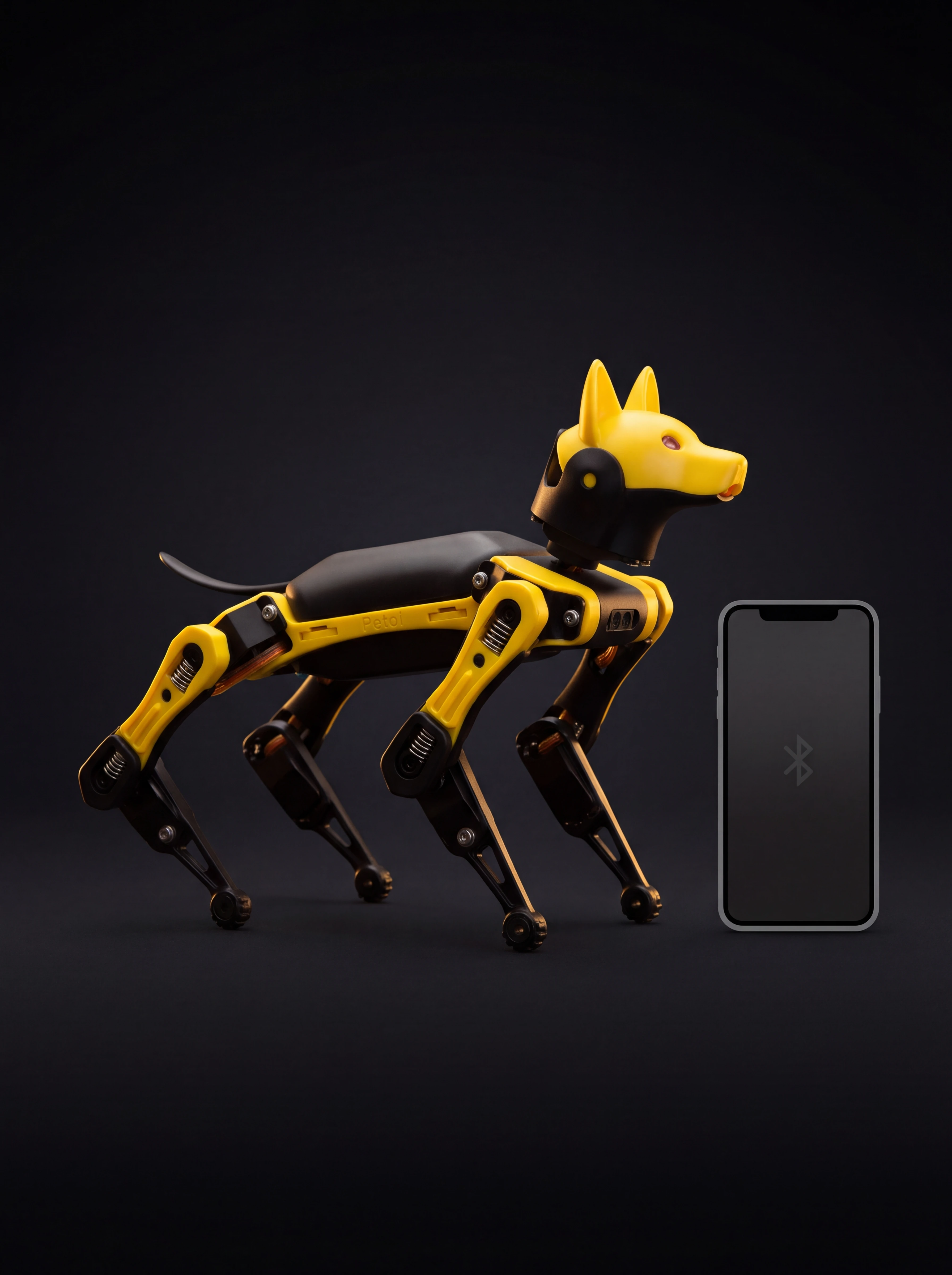
This guide is for the Petoi Bittle X V2 with BiBoard V1. The original Bittle X used a different board, and the arm package is another configuration. Petoi says its Android and iOS app can connect over Bluetooth for control and calibration. Two frequent mistakes are pairing in the phone's system settings rather than in the Petoi app and trying an infrared remote intended for older boards. Petoi expressly says that remote does not work with Bittle X V2/BiBoard V1. Independent Robots4Home describes the V2 as a hands-on educational robot, so allow time to identify and configure the exact kit.
Prepare the robot and phone
Place Bittle on a stable surface with room for unexpected movement. The V2 manual says to route the curly wire from knee to shoulder so the joint will not squeeze it. Hold the battery button for about three seconds. A short melody signals startup; wait for the board to initialise. If the indicator is red or you hear the repeated low-power melody, stop and charge as Petoi directs. The charging USB-C socket is on the removed battery, not the BiBoard data port. Do not interchange them.
Install the official Petoi app for your phone and check current operating-system requirements. Enable Bluetooth and grant the app Bluetooth access. On some Android versions, scanning also requires location permission or the location service to be enabled. Read the permission request on your device instead of assuming every phone behaves alike.
Connect in the right place
- Start Bittle X V2 in regular mode and wait for its boot melody.
- Open the Petoi app and its Bluetooth scan screen. Do not pair the robot in the phone's general Bluetooth settings.
- Select the nearby device named Bittle, Petoi or OpenCat. If several appear, confirm which robot is yours.
- Wait for the control panel. With current firmware the app should identify the robot; otherwise select the correct type there.
- Test a simple command with clear space around the robot. Do not start with a jump to diagnose a connection.
| Symptom | Check | Documented response |
|---|---|---|
| Empty scan list | App permissions | Enable Bluetooth and any required location access |
| “Not a Petoi device” | Firmware and boot mode | Check OpenCatEsp32 and regular startup |
| Connected but still | Battery and command response | Check power, then the documented reset |
| Infrared remote fails | Board version | Use V2-supported control instead |
Understand the error message
The app sends a greeting and expects the robot's firmware to answer. Petoi explains that a board without the correct OpenCatEsp32 firmware in regular mode may be labelled “not a Petoi device”. This does not by itself prove the Bluetooth hardware failed. A preassembled robot should normally have firmware installed. After a firmware change, check the BiBoard V1 label, app version and maker's procedure before changing anything else. Do not upload older Bittle X firmware by guesswork. Firmware maintenance is a separate task; see the ROBOLERO guides.
If the list remains empty after permissions are fixed, Petoi points Android users to a previous stable app release linked from its documentation. Download only from that official path. If the app connects yet control remains unresponsive, inspect battery state and posture before the motherboard reset described by Petoi. Repeated failures deserve support, not endless resets.
A successful Bluetooth link proves communication in one session, not correct calibration, healthy battery or every advertised skill. For a used V2 ask for a photo of the controller and a continuous video of one simple app command. Compare the Bittle X model page and other guides. ROBOLERO has not physically connected your unit. Sources: Petoi app guide, remote compatibility, V2 boot-up, Robots4Home review.