
Loona Does Not Connect to Wi-Fi: Essential Checks and Solutions
This documentation compares the KEYi instructions with an independent review; it does not describe an in-house test of the device.
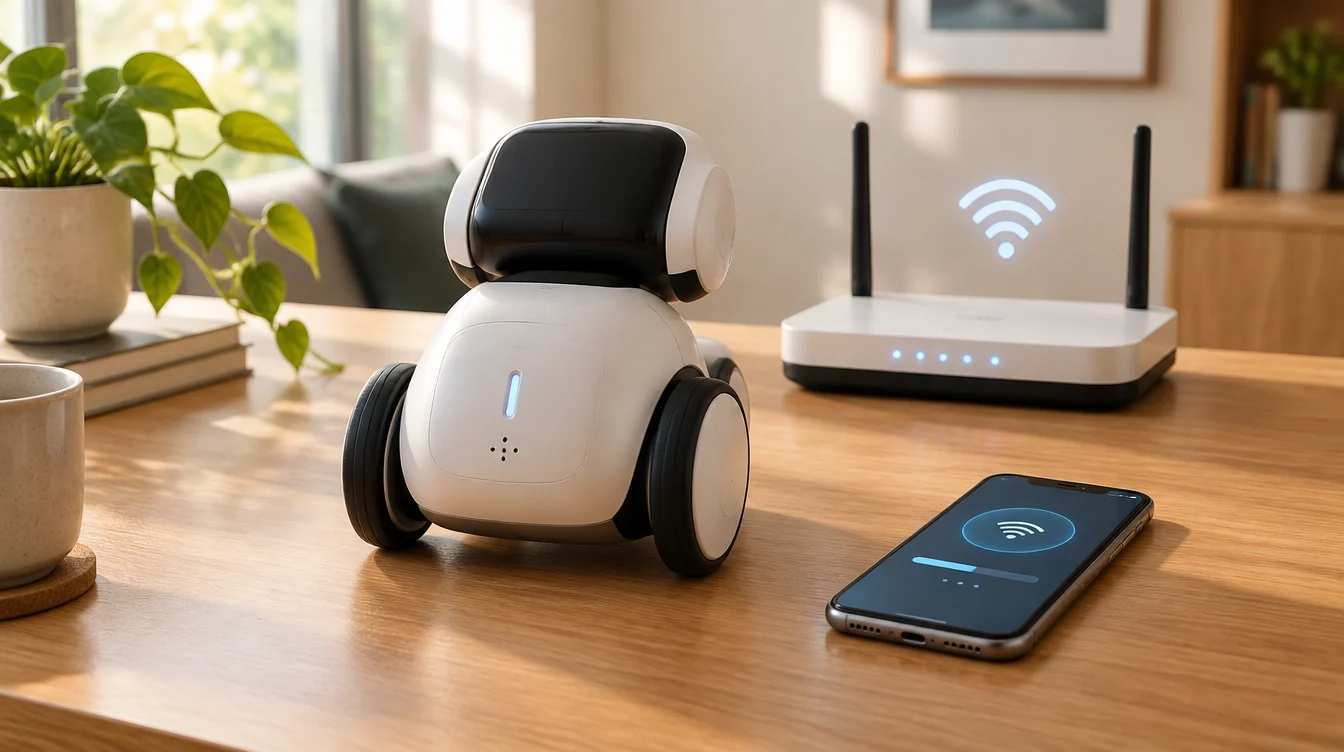
Loona, the AI-enabled pet robot, requires a Wi-Fi connection to enable certain cloud functions, including voice recognition based on Amazon Web Services. When connectivity is lost, many functions become limited, making it necessary to carefully verify the configuration without resorting to invasive procedures such as factory resets or improper changes to home network security.
Differences Between Loona’s Temporary Hotspot and Home Network
During the initial setup, Loona creates a temporary Wi-Fi hotspot identified by a name starting with "Loona." This hotspot allows the phone to connect directly to the robot to configure access to the home network. This hotspot is distinct from the home Wi-Fi network, which must support either 2.4 GHz or 5.8 GHz frequencies according to the 802.11 a/b/g/n standard, both compatible with Loona. It is important not to confuse the temporary network generated by Loona with the home router, as these are separate networks with different functions.
App Permissions and Network Configurations
The official Loona app requires certain permissions on the mobile device, such as local network access, to discover and manage the robot. It is necessary to verify that these permissions are enabled in the device settings. Regarding the router, the DHCP server must be enabled to assign IP addresses automatically. If MAC filtering is active, the MAC address of Loona must be authorized through the router interface without disabling the security function. The KEYi guide also mentions local discovery via Bonjour: on managed networks, administrators should verify communication between the phone and robot, avoiding generic router modifications.
Official Connection Setup Procedure
To start pairing, consult the linked KEYi procedure at the bottom and verify that it corresponds to the installed app and firmware versions. The pairing screen and QR code belong to this process and do not equate to a factory reset. After waking up, KEYi indicates allowing the robot about 30 seconds to reconnect; this is an approximate guideline, not a guarantee of connection within a fixed time.
Reasoned Diagnosis of Common Issues
- Unable to connect to the "Loona" hotspot on the phone: Check the Wi-Fi network list for a network whose name starts with "Loona." If not shown, verify you are in the pairing phase as specified by the official guide for your version. On Android devices, temporarily disabling mobile data during connection may help.
- Wi-Fi password errors or "Failed" messages: Ensure the entered password is correct and the router has not reached its maximum number of connected devices. Also, verify that any security functions like intrusion prevention or MAC filtering allow Loona’s access.
- Unstable connections or timeouts: These may be caused by weak or unstable Wi-Fi signals. Try connecting Loona to a different network or a mobile hotspot to exclude issues with the home router.
Advice for Home and Corporate Networks
Disabling firewalls, encryption, or router security filters is not recommended. In environments with administrator-managed networks, proper enabling of involved devices should be requested. Always follow official procedures for firmware and applications, avoiding factory resets unless explicitly indicated, to prevent loss of data or settings.
Summary Table of Checks
| Aspect | Check | Notes |
|---|---|---|
| Loona Hotspot | Verify presence of "Loona" Wi-Fi network | If absent, check pairing phase in KEYi guide |
| App Permissions | Enable local network access | Needed to detect and control Loona |
| Router | IP assignment; device authorization; local communication | Check security settings and authorized devices |
| Wi-Fi Password | Verify correct input | Incorrect password prevents connection |
| Loona Status | Allow time for reconnection after wake-up | Guide suggests about 30 seconds; not a guarantee |
FAQ
Does Loona support both 2.4 GHz and 5.8 GHz bands? Yes, according to official specifications, Loona is compatible with both 2.4 GHz and 5.8 GHz frequencies under the 802.11 a/b/g/n protocols, without requiring the router to offer both bands simultaneously.
Is it advisable to perform a factory reset to fix connection problems? Generally no, unless explicitly requested by the manufacturer, as this operation results in loss of data and settings.
What to do if the "Loona" hotspot does not appear on the device? Consult the KEYi pairing procedure for your installed version, distinguishing it from restart and factory reset. On Android smartphones, temporarily disabling mobile data may facilitate hotspot detection.
Sources and Further Reading:
To discover more robots, visit the catalog and for further insights consult the guides.