
Unitree Go2 setup: connect the app before first use
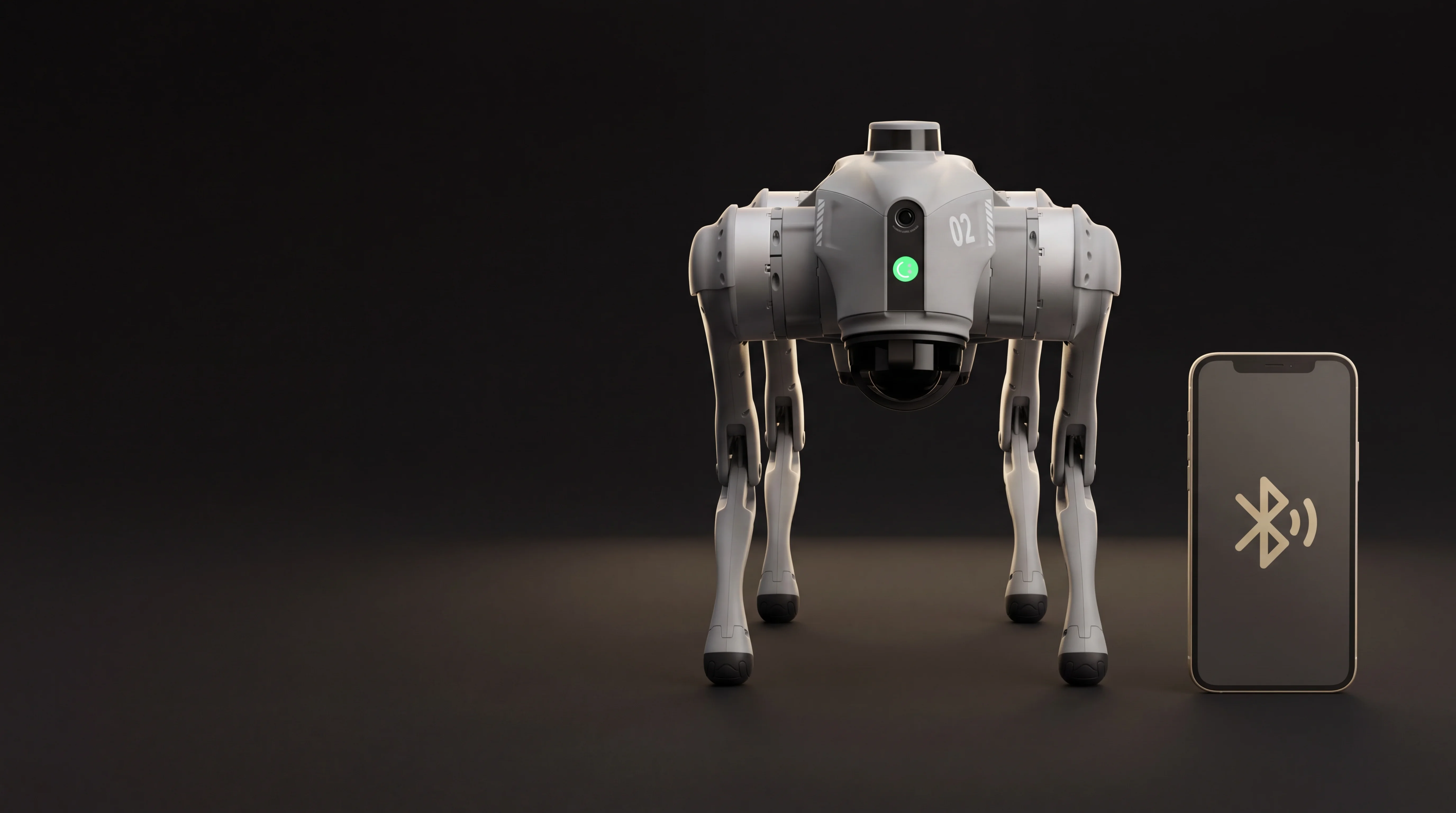
Getting a Unitree Go2 ready involves two different tasks: starting the robot as the manual describes and binding it to an account in the Unitree Go app. A robot that has not been bound may appear to have a connection fault when setup is simply unfinished. This guide summarizes Unitree's published instructions; it is not a hands-on ROBOLERO test. Screens and features can change with region, model and firmware, so follow the instructions for your own unit when they differ.
Prepare the robot and phone
Check which Go2 version you have, the battery and the robot's physical condition. The manual illustrates battery orientation and the leg and body position required before startup. Place Go2 on level ground, with its body and legs supported as shown in Unitree's diagrams. Keep hands and objects away from the joints and leave open space around it. Unitree advises keeping the robot in sight and clear of obstacles, crowds and water. For an initial check, use a dry, level surface rather than a slippery or soft floor.
Download the international Unitree Go app from Unitree's Go2 app page, create or access your account and allow Bluetooth access on your phone. Keep the phone close to Go2 during binding. If the robot is already linked to somebody else's account, use the previous owner's account or contact Unitree support; do not treat account binding as an ordinary Wi-Fi error.
Start Go2, then bind the app
Once Go2 is placed as the manual shows, Unitree instructs users to press the power button briefly, then hold it for at least two seconds. Wait for startup to finish and do not lift the powered robot. The manual describes a steady green head indicator and a body parallel to the ground at completion. If it fails to stand or the indicator flashes red, stop attempts to move it and consult the manual's troubleshooting section.
Open Unitree Go, sign in and select Add robot. Turn on Bluetooth and grant the app permission, keeping the phone near Go2. The manual says first use requires *binding*: the account is associated with the robot. Follow the app's prompts to identify Go2 and enter the requested robot information. The app then offers AP/router mode or Wi-Fi mode. AP uses the robot's hotspot; Wi-Fi uses a network you select. These are connection paths, not separate models. Complete the in-app tutorial and wait for an explicit connection confirmation. Button names may differ across app versions.
Check control in a safe space
Before moving Go2, confirm that the app still recognizes it and the connection is stable. Unitree says to complete the built-in tutorial before app control. Try only its introductory controls with the robot visible and free space around it. First startup is not the moment for jumps, stairs or advanced modes. Do not assume that every Air, Pro and EDU unit exposes the same controls, or that a feature advertised on the app page is available on your exact version.
An optional remote can require separate pairing. The manual also describes a situation where app control and companion-remote following cannot operate together. If the phone is connected but cannot drive Go2, check which control mode is active before repeating account binding. A paired robot and an active control channel are different checks.
Connection troubleshooting
For Bluetooth, check that it is on, the app has permission and the phone is close. In AP mode, the phone must connect to the hotspot broadcast by Go2. In Wi-Fi mode, check the selected network and its Internet connection, as the manual directs. For a robot already bound to another account, Unitree documents Settings → Robot Settings → Switch Connection → Unbind in the app. Only somebody with access to that account can complete this path; contact Unitree if the bound account has been lost.
An independent account of a research Go2 EDU reports trouble with one Wi-Fi network and a successful connection through a phone hotspot. This is a specific setup, not evidence of a fault in every Go2.
Do not recalibrate joints as a generic connection fix. Unitree says Go2 is factory calibrated and joint calibration is not needed for normal use. If posture remains abnormal, consult its technical support. A factory reset is a separate procedure with specific requirements and should not be the default first step. Read the current Unitree manual and app tutorials for the instructions that apply to your device.
If support is needed, note the model, app version, connection mode, head indicator and error message. These details help separate startup, account and network faults. Do not post account credentials or device identifiers publicly. Read the Unitree Go2 Pro profile for one model example; this article does not verify live listings or claim that we tested your unit.
Sources
- Unitree, official Go2 app page and tutorials.
- Unitree, Go2 user manual, startup, binding and troubleshooting sections.
- @matsutomato on Qiita, Go2 EDU app experience; individual experience with a specific version and network.